Official Manual · First Connection
Shadowrocket Quick Start Guide
This guide uses the iPhone / iPad interface, from adding a server to choosing a routing mode, connecting, and verifying the result. For initial setup, use one known-working server to make it easier to identify where a problem occurs.
01 Add or import
Add a server or import a subscription
First, identify the details you have. If you have a server's protocol, address, port, and authentication details, use Add Server to enter them manually. If you have a subscription link that updates a server list, use Subscribe. Choose one method; there is no need to add the same server manually as well.
Enter details manually with Add Server
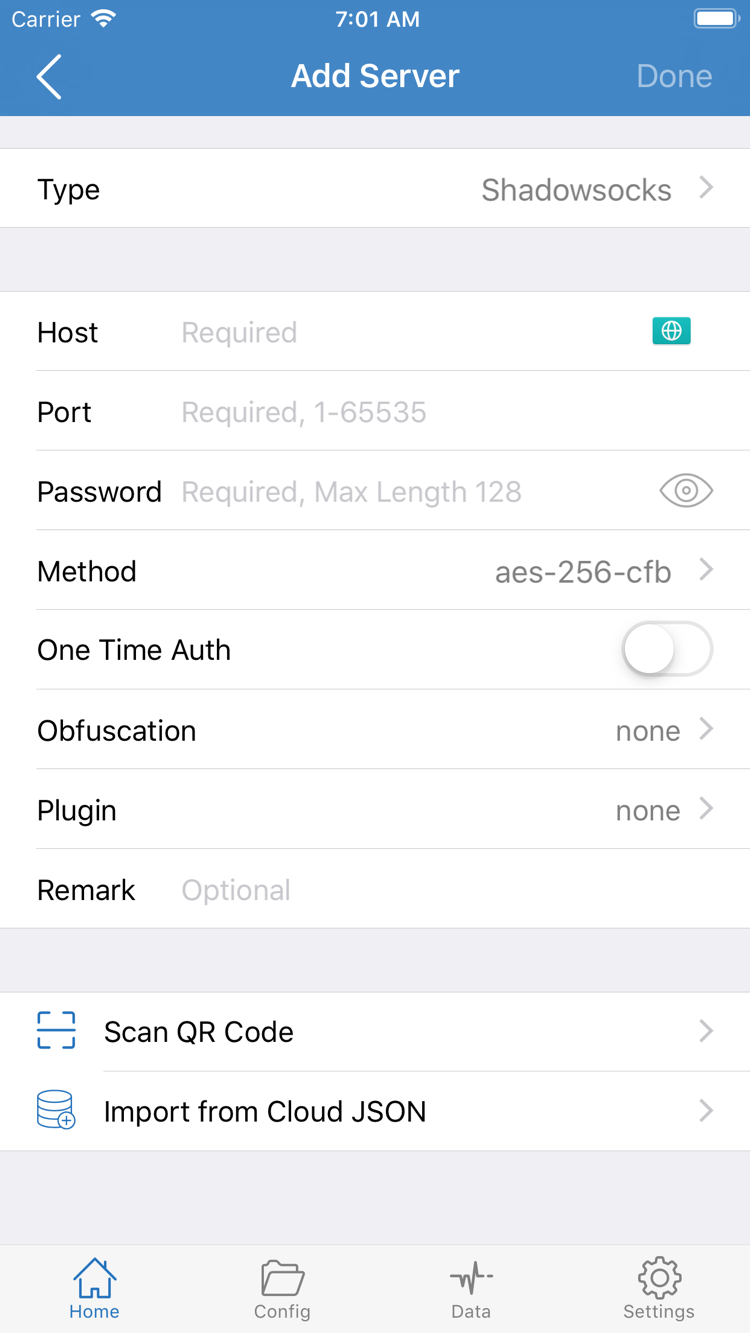
- Open Shadowrocket and find Add Server under SERVER on Home. Tap Type and choose the protocol specified by your service provider. Available fields vary by Type; selecting the protocol first makes it easier to spot incorrect server details before entering the address.
- Enter the address and port separately in Host and Port. In Host, enter only the hostname or IP from your server details; do not paste a full URL, path, or port. If the selected Type shows Password or Method, enter the matching authentication details and encryption method from your server information. Do not reuse values from another entry.
- Save and return to Home. Confirm that the entry you just added appears under SERVER. If your provider gave you a QR code, use Scan QR Code below Add Server. After it is recognized, check Type and Host to make sure the expected entry was imported.
Import a server list with Subscribe
Find Subscribe on Config. If the current interface presents subscription as a type, open Add Server from Home and choose Subscribe in the Type list. Paste the complete subscription link into the corresponding address field, keeping any query parameters at the end. Check for extra spaces or line breaks, save, and wait for the result. Return to Home, expand the relevant group, and confirm that the SERVER list contains an available server.
If you saved a subscription address but the list is still empty, there is no server available to select yet. Check the update result in the subscription section, then verify that the link is complete and valid and that the device's current network can reach it. Do not enter the subscription link in Host or post a complete link containing authentication parameters on a public help page. Once an entry is available, continue to routing settings.
02 Routing mode
Choose a Global Routing mode
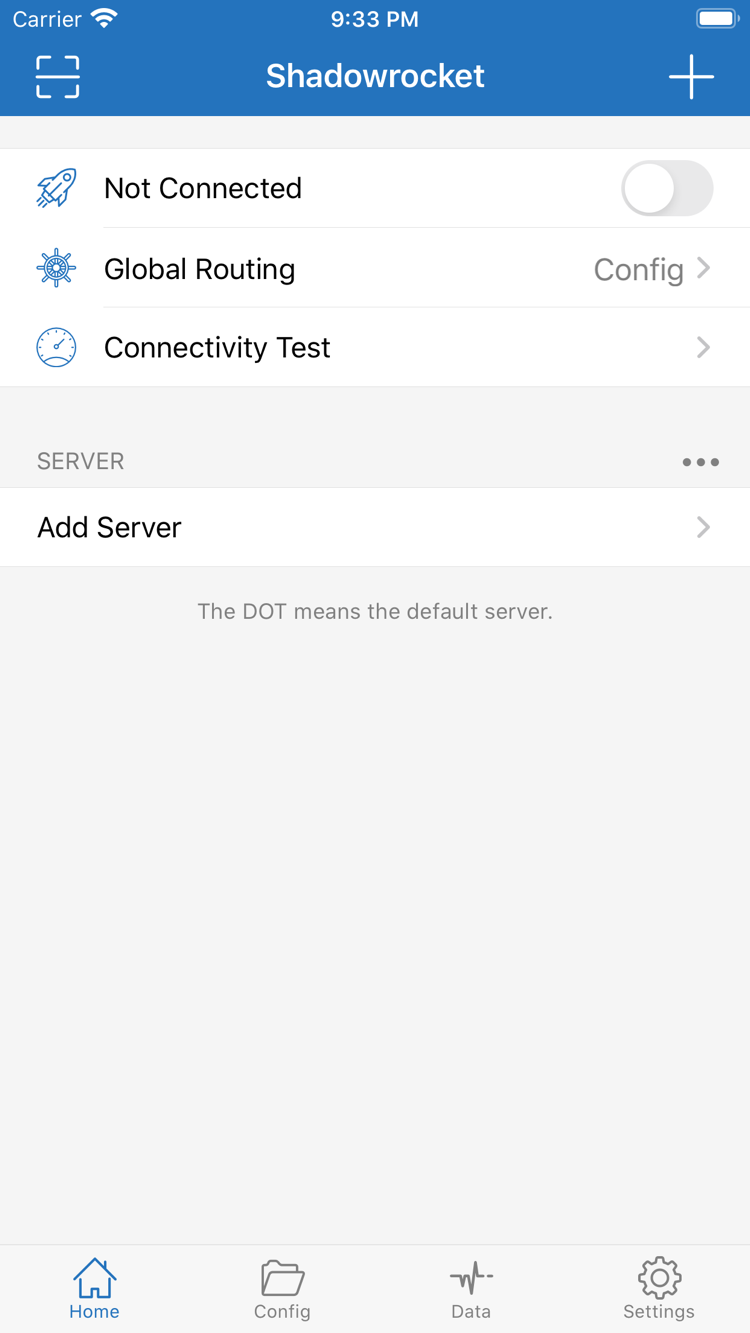
Return to Home, tap Global Routing, and choose Config, Proxy, or Direct. This setting determines how traffic is handled after a connection is established; it does not select a server or turn on the connection. After choosing, return to Home and check that the value beside Global Routing matches your selection.
- Config: Handle traffic according to the rules in the current configuration file. Use this when you have specific routing rules, such as sending some destinations through DIRECT and others through PROXY according to the rules. After selecting this mode, confirm which configuration file is in use.
- Proxy: Send traffic through the selected proxy server in this mode, without relying on individual routing rules in the configuration file. For an initial connection test, you can temporarily choose this mode to check whether the proxy path works. After testing, switch back to the mode you intend to use.
- Direct: Handle traffic directly without using a proxy server. This mode is useful for comparison: if a webpage loads in Direct but not in Proxy, first check the server and test results instead of immediately rewriting rules.
Check the configuration file used by Config
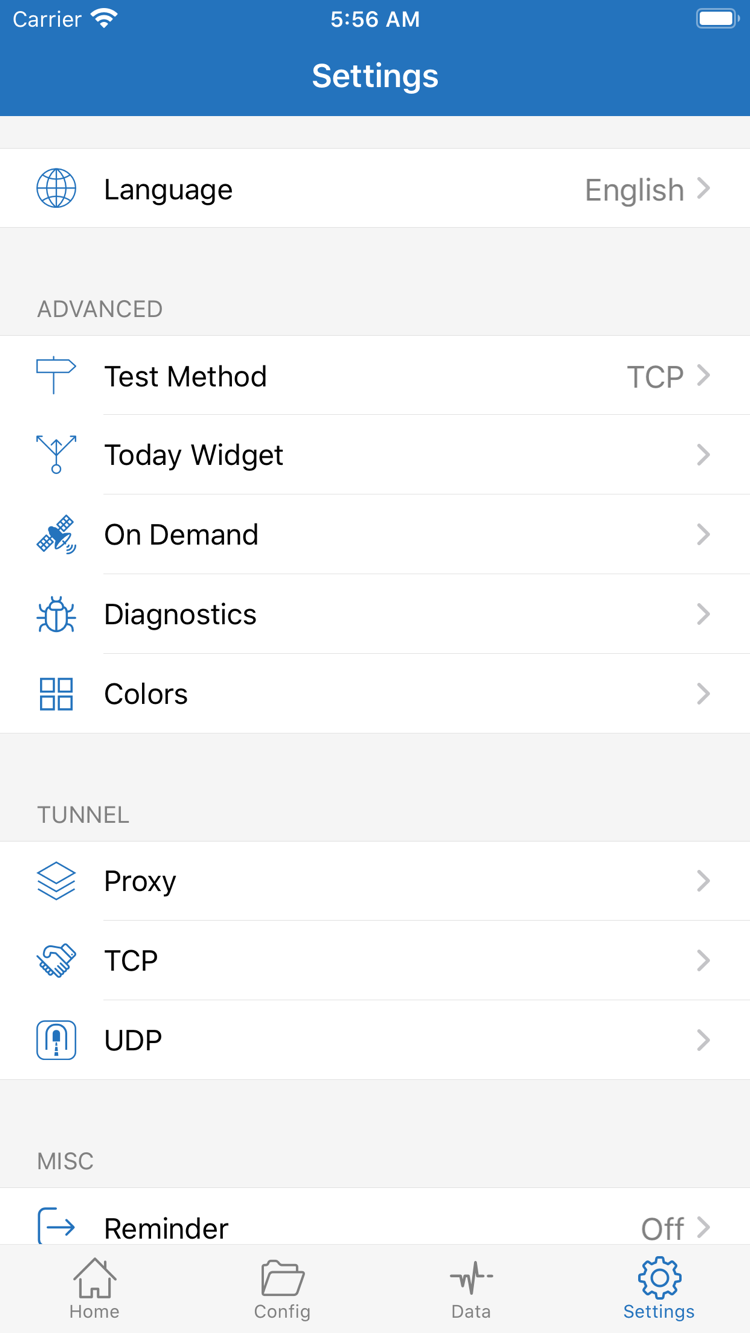
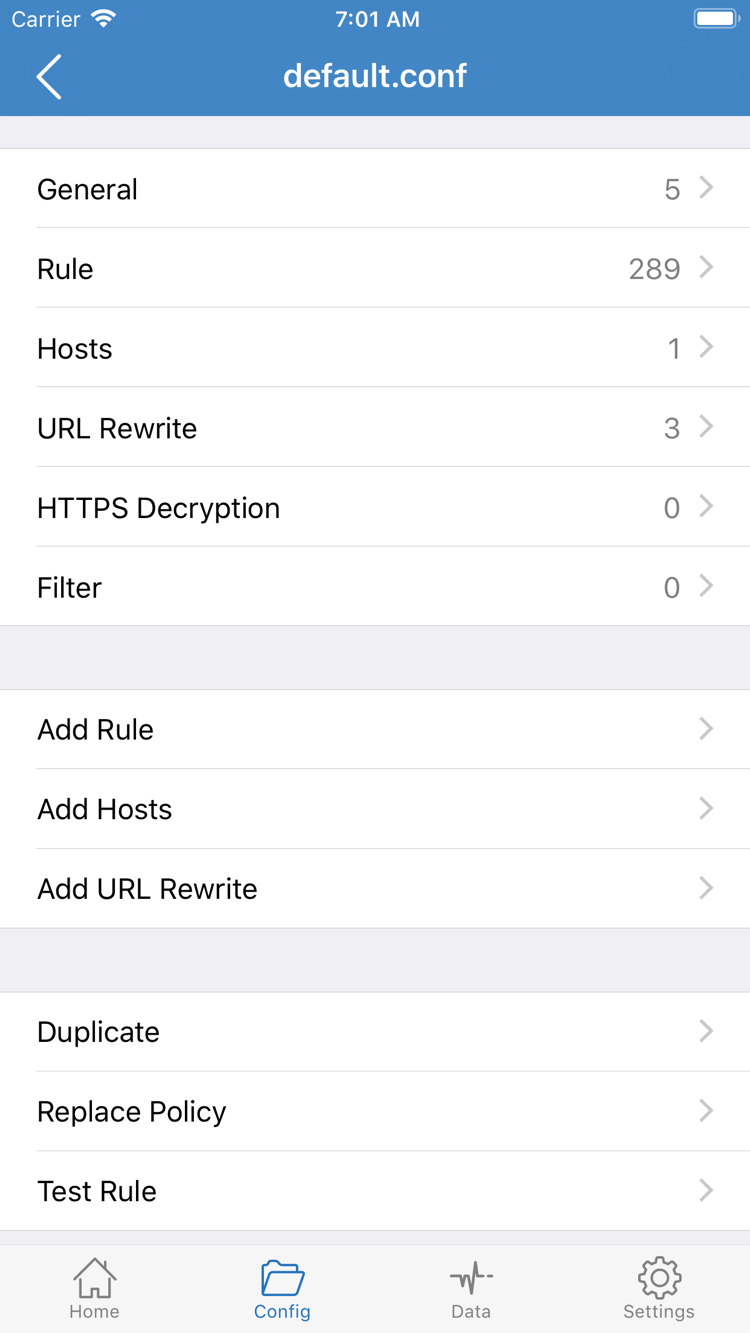
When using Config, open Config at the bottom and check which configuration file is enabled. Open its details and find the Rule section. Start by reviewing it: check whether the domain you care about has a rule, whether the rule points to PROXY or DIRECT, and which FINAL handles unmatched requests. Do not modify the entire configuration just to load one webpage. Save the working settings first, then test one item at a time.
Rule order affects the result. For example, DOMAIN-SUFFIX,example.com,PROXY matches the specified domain suffix, but if a request matches an earlier rule first, that rule determines how it is handled. FINAL is checked only when no earlier rule matches. Updating a subscription updates the server list; it does not enable a configuration file. After changing a subscription, check both separately.
03 First connection
Select a server and connect
After importing and setting the routing mode, return to Home. Select a server before starting the connection, then check the switch status. To test the proxy path, use Config or Proxy; a successful connection shown in Direct does not confirm that the proxy server is working.
- Find the entry you want under SERVER and tap the dot to its left. Confirm that the selection marker remains beside the intended entry. Opening an entry's details and seeing the server name does not mean it has been selected.
- Tap the switch beside Not Connected at the top of Home. If iOS or iPadOS displays a VPN configuration prompt on the first connection, confirm that the request is from Shadowrocket, allow it, and complete any device verification requested by the system. When the prompt closes, return to Home and check the status.
- Confirm that the top of the screen shows an active connection and that the switch does not quickly turn off again. If it stays at Not Connected, first check whether you completed the system confirmation and whether the device has a working network connection. Repeatedly toggling the switch is not a substitute for troubleshooting.
An active connection means the system connection has started. It does not mean every destination follows the same route or that the server has passed a connectivity test. Next, test the selected entry and check routing with an actual visit.
04 Connectivity check
Verify with Connectivity Test
Connectivity Test checks how the server responds to its test target using the current test method. It can help distinguish a server connectivity issue from a problem accessing a particular webpage. However, one response does not prove that all websites are accessible, and the test value alone cannot show which rule handled the traffic.
- Check the selected entry's result first. Tap Connectivity Test on Home and find the server you selected after the results appear. If the interface shows multiple results, do not mistake another server in the same group for the selected entry. If the test times out, try again when the network is stable, keeping the server and test method unchanged.
- Then check actual access. Keep the current connection and Global Routing settings, open a browser, and refresh a known accessible webpage to avoid relying on a cached page. With Config, test one destination expected to use DIRECT and another expected to use PROXY. This checks whether access behaves as expected; a page loading by itself does not prove that the correct routing rule was applied.
- Choose the next step based on the result. If the test responds and actual access matches expectations, initial setup is complete. If the test responds but a specific destination does not load, check Global Routing and rule order first. If both the test and access fail, check the basic network and server details while leaving the original configuration file unchanged.
05 Troubleshooting
Check settings at the point of failure
Start with the earliest step that failed. If import did not succeed, there is no need to change Global Routing. If the switch will not stay on, there is no need to start by checking rules. Treat the configuration file as the main item to inspect only when actual access does not match the expected routing.
The list is empty, or the connection switch will not stay on
If the list is empty, return to Subscribe import and check the save and update results. For a manually entered entry, reopen its details and verify that Type matches the provider's information. If the list has entries but the switch quickly turns off, first confirm that the system VPN configuration was added, then check whether another VPN connection is running on the device. Before disabling another connection for comparison, make sure it is not required by work or school.
The test times out, or only some websites fail to load
First disconnect Shadowrocket and use a browser to confirm that the Wi-Fi or cellular network itself works. Reconnect to the same server and test again. If it still times out, check Host, Port, and the authentication fields for the selected protocol. In Settings, check Test Method; use the same method when comparing results. If the test responds but certain destinations fail, check whether an earlier rule matches their domains or whether they reach an unexpected FINAL.
The connection turns on or off unexpectedly after changing networks
Open On Demand in Settings and check whether any conditions related to the current Wi-Fi or cellular network are enabled. To test a manual connection, note the original settings, temporarily disable On Demand, and test again on the same network. Then restore the settings as needed. If the issue occurs only when switching networks, keep the server and routing mode unchanged to determine whether a network-switch condition is being triggered or the proxy path itself is unstable.
To document an issue, note the network type, Global Routing mode, connection status, and test results. Before sharing a screenshot, hide subscription links, host addresses, and authentication fields. For questions about store listings, purchase records, or restoring on a new device, see the Installation Guide; there is no need to repeat the routing steps above.